
最近在做项目时,遇到这么一个需求, “用户点击 input 框时,框内的提示文字平移到 input 框的上面且提示文字随着 input 框的颜色变化而变化。” 虽然听起来很难懂,也不知道是什么效果,但仔细想想其实通过 input 框的几个事件配合动态 class 即可实现这个效果,下面附上我的实现思路及源码。
先看实现的效果是什么样子的,如下图:
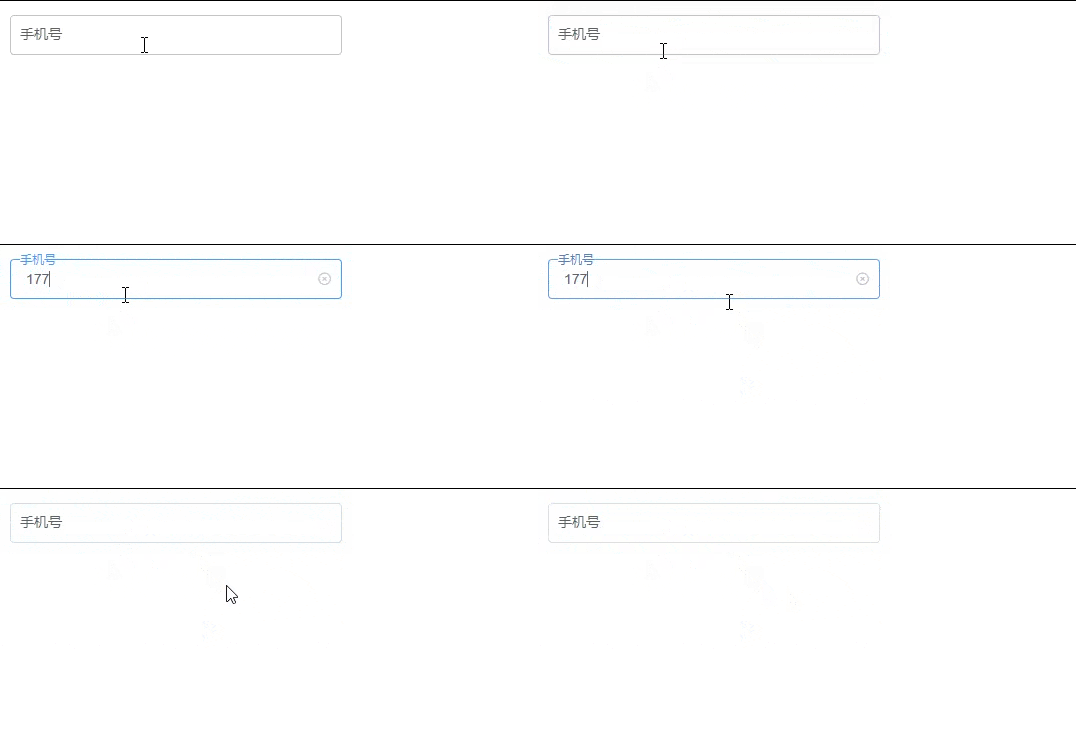
思路理清之后再实现操作就非常简单了,下面附上完整源码,大家可以配合代码注释自己理解,也可以评论留言,我看到就会回复大家。
完整源码
<template>
  <div>
    <div >
      <!--// focus:获取焦点事件 blur:失焦事件 clear:清空事件 input:input 值改变时触发事件 -->
      <el-input @focus="download" @blur="unfocused" v-model="input" @clear="empty" @input="inputText" clearable>
      </el-input>
      <!--// 通过 changeIndex 的值判断生效那一套样式 -->
      <!--// : -->
      <span :>手机号</span>
    </div>
  </div>
</template>
<script>
  export default {
    data() {
      return {
        input: '', //input 绑定的 model
        changeIndex: 0, //定义一个变量;0 默认样式,1 第二套样式,2 第三套样式
      };
    },
    methods: {
      //获得焦点事件
      download() {
        this.changeIndex = 1; //获取焦点等于 1,展示第二套样式,文字提示平移到 input 框上面
      },
      inputText() {
        this.changeIndex = 1; //当 input 值改变时,展示第二套样式,文字提示平移到 input 框上面
      },
      //清空事件
      empty() {
        this.changeIndex = 0; //点击清空展示默认的样式
      },
      //失去焦点事件
      unfocused() {
        if (this.input != "") {
          this.changeIndex = 2; //如果框中有值,展示第三套样式
        } else if (this.input == "") {
          this.changeIndex = 0; //失焦等于 0,展示默认样式
        }
      },
    }

  };
</script>

<style scoped>
  .frame {
    /* 宽高大家可根据自己需求进行调整,调整完后下面的样式也要进行微调 */
    width: 20%;
    height: 40px;
    /* 父元素设置相对定位,这样子元素设置绝对定位后就会在父元素的左上角*/
    position: relative;
  }

  .frame span {
    /* 默认情况下的样式 */
    position: absolute;
    top: 0;
    left: 3%;
    padding: 0px 7px;
    display: inline-block;
    margin-top: -0.55%;
    color: #9e9e9e;
    font-size: 14px;
    pointer-events: none;
    height: 40px;
    display: flex;
    align-items: center;
    transition: all 0.3s; /*平移上方时,添加一个过渡效果让其没有那么的不自然,我这边设置了 0.3 秒执行完这个上移的操作 */
  }

  /* 获取焦点后的第一种样式 */
  .frame .focusBlur {
    position: absolute;
    font-size: 12px;
    top: -16%;
    height: 16px;
    color: rgb(64, 158, 255);
    background-color: white;
  }

  /* 如果框中有值顶部文字颜色展示为黑色,第二种样式 */
  .frame .focusBlurTwo {
    position: absolute;
    font-size: 12px;
    top: -16%;
    height: 16px;
    background-color: white;
  }
</style>